Smartphones Greeting Cards: How To Send An Ecard With Your Cell Phone

You can send e-cards to smartphones by using websites that provide a large variety of free e-cards for all occasions. If your friend's birthday is coming up, you can create a birthday e-card, or let your significant other know you did not forget your anniversary with an e-card. Sending an e-card to a friend’s phone is a quick way to get in touch if they are always on the go. However, make sure your friend’s phone can access the Internet so they can pick up their e-card via email, which is the simplest way to do this. When using a regular e-card service you are able to send the card to either a computer or a cell phone, which makes this a versatile option for most everyone.
Use Flickr To Make A Greeting Card
There are many websites where you can browse through a selection of premade cards to send your friends, but I prefer using my own photos to do this on Flickr. So how exactly do I make a cell phone card for my phone? I approach this task the same way I would when creating a greeting card on my computer, especially since most cell phones today have fully functional Internet usage. However, I prefer to use pictures already stored on Flickr when making my card as uploading these from your cell phone can take longer. So here are the steps for making a really creative cell phone greeting card.
1. Log-in to Flickr.
2. Select the photo you would like to transform into a greeting card.
3. Go to the actions drop down menu and select to edit in Picnik, which will automatically take you to the photo editing program.
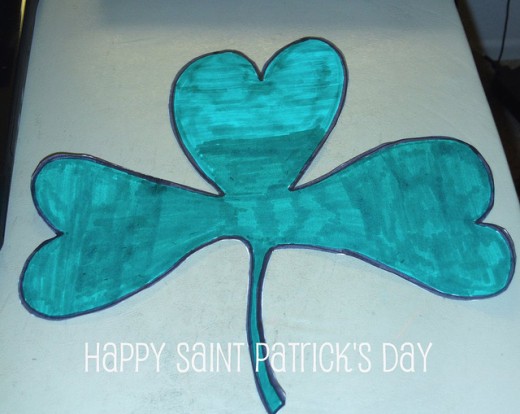
4. Click on the create tab to add new text to your image. I decided to write the message "Happy Saint Patrick's Day" on a picture of the shamrock I made the other day.
5. Hit save once you are satisfied with the changes you have made to your card.
6. Share the link to your card with a friend on Facebook, or embed into an email message.
Use Photobucket To Make A Greeting Card
Here are the steps I used for turning my picture into a greeting card over on photo bucket. One thing I really like about using Photobucket to edit my pictures is how they have so many cool features, like the ability to add sparkles to my e-card.
1. Log-in to the Photobucket website.
2. Select the photo you would like to turn into a greeting card.
3. Go to the top of the image and click on "see much more," which will show a menu with all the photo editing options.
4. Choose a fun option like ink stamp, and add a bit of text to your photo.
5. Add a bit of text to your e-card.
6. Do not forget to use the sparkle option to add a bit of flair to your card.
7. Share a link to the greeting card on Facebook, or embed into an email message.